
Gemini's real-time voice interaction
Google released Gemini 3.8 Live and Gemini 3.8 Live Extended Thinking, native speech-to-speech models for real-time voice conversations, rivaling OpenAI's GPT-Live family. This guide introduces their capabilities, including interruption support, and demonstrates a browser-based playground built with native WebSockets and the Web Audio API — no third-party libraries — enabling low-latency bidirectional audio streaming for voice-powered AI experiences.

Google has released two new speech-to-speech models, Gemini 3.8 Live and Gemini 3.8 Live Extended Thinking, designed for real-time voice conversations that resemble OpenAI's GPT-Live family. If you're a developer curious about building voice-powered AI experiences in the browser, this guide walks you through what these models offer and how to get started with the underlying WebSockets API — no prior experience with audio programming required.

What's New in the Gemini Live Models
The two releases share the same foundation but serve slightly different needs. Gemini 3.8 Live is the standard speech-to-speech model, handling voice input and producing voice output directly. Gemini 3.8 Live Extended Thinking adds a deeper reasoning capability on top of that, giving the model more room to work through complex questions before it responds aloud.
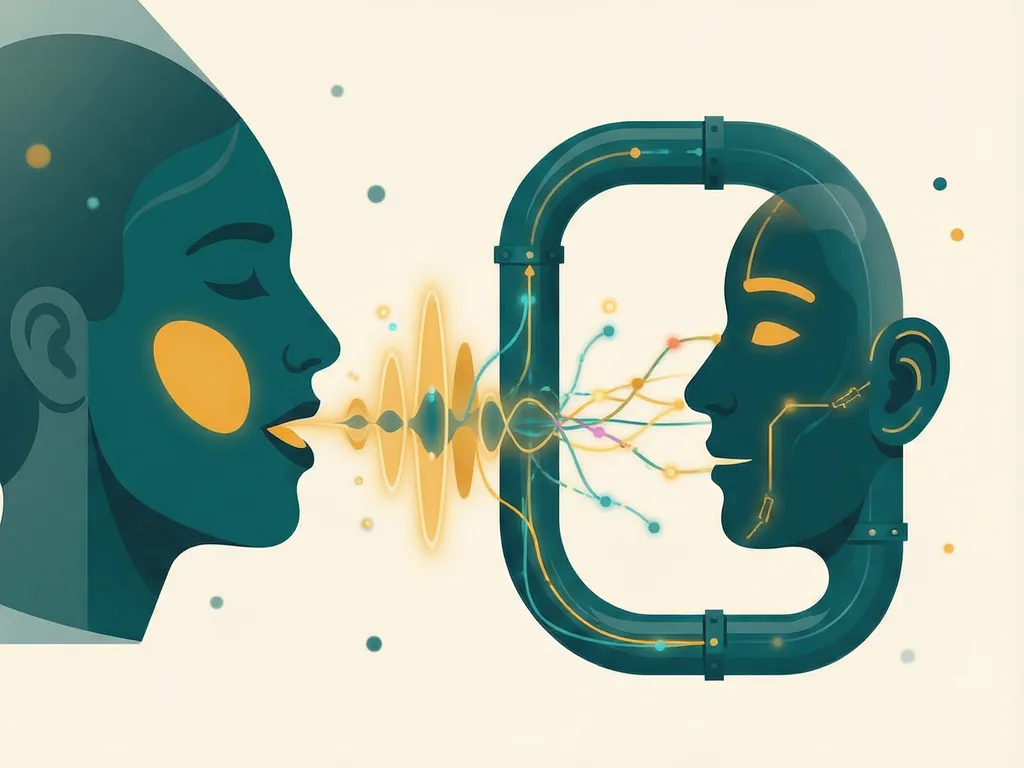
Speech-to-speech models differ from the more familiar text-based chatbots in an important way. Instead of converting your speech to text, generating a text answer, and then reading that answer back with a synthetic voice, these models process audio natively. The result is a conversation that feels faster and more natural, with responses that can pick up on tone and pacing in ways that chained pipelines often miss.
The overall shape of the release closely mirrors what OpenAI offers with its GPT-Live family, so if you've experimented with real-time voice AI on that side, the concepts here will feel familiar.
A Browser-Based Playground for Testing
To make the new models easy to explore, a web UI was built for trying them out directly. The interface was assembled with the help of GPT-6 Astra Extra High, which was pointed at the API documentation and tasked with generating a working demo.
The playground is deliberately simple:

- Model selection — pick between the available Live models, such as the standard and Extended Thinking variants.
- Voice presets — choose the voice style the model uses when speaking.
- Optional system prompt — set the stage for the conversation, giving the model instructions about how it should behave.
- Browser-based voice chat — talk to the model through your microphone and hear replies through your speakers.
One of the standout features is interruption support. Just as you might cut in while a friend is mid-sentence, you can speak over the model while it's talking, and it will stop and respond to you. This barge-in behavior is a hallmark of a well-built real-time voice system and makes the interaction feel much closer to a genuine human conversation.
How the Implementation Works
Perhaps the most interesting technical detail is what the demo doesn't use: libraries. There are no third-party packages handling the audio or the connection. Everything relies on two native browser technologies.
The WebSocket connection. The demo connects directly to Google's bidirectional streaming endpoint:
```
wss://generativelanguage.googleapis.com/ws/google.ai.generativelanguage.v1alpha.GenerativeService.BidiGenerateContent?key=...
```

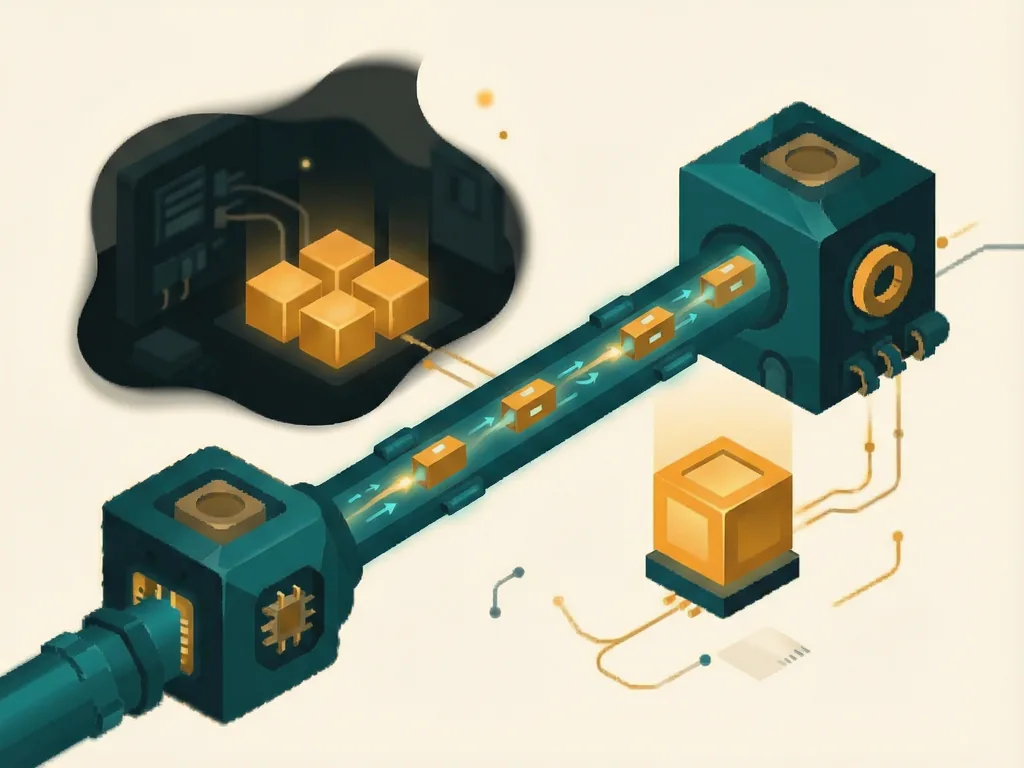
The `BidiGenerateContent` part of that URL is the key concept — it's a bidirectional channel, meaning audio flows in both directions simultaneously. Your voice goes up to the model while the model's replies stream back down, all over a single persistent connection. You'll need to supply your own API key in place of the `key=...` parameter.
The Web Audio API. Capture and playback are both handled by a single `AudioContext` from the browser's Web Audio API. When you speak, your microphone input is captured, processed, and sent over the WebSocket. When the model responds, the incoming audio is routed through the same context to your output device. Using one AudioContext for both directions keeps latency low, which matters a great deal when the goal is conversation that feels instantaneous.
Because everything runs on native browser APIs, the whole thing is lightweight and portable — it works in any modern browser without installs or dependencies.
Getting Started with the API
If you want to experiment yourself, the path is straightforward:
- Get an API key for the Gemini API from Google, since the WebSocket endpoint authenticates via the `key` query parameter.
- Open a WebSocket connection to the `BidiGenerateContent` endpoint shown above, appending your key.
- Configure the session by sending setup information over the socket — the model you want, your chosen voice preset, and any system prompt.
- Capture microphone audio using an `AudioContext` with `getUserMedia`, and stream the audio chunks to the server.
- Receive and play responses by piping incoming audio messages back through the same audio context.
- Handle interruptions by monitoring user input while the model is speaking so playback can stop the moment the user starts talking.
For a full walkthrough of these steps, the Gemini Live tutorial covers the WebSockets API in detail.
Common Mistakes
- Forgetting the API key in the WebSocket URL — the connection will fail immediately without valid authentication.
- Skipping the setup message — the session needs initial configuration before audio can be exchanged.
- Ignoring interruption handling — if playback isn't stopped when the user speaks, the conversation quickly feels broken.
- Using an unsupported browser — the Web Audio API and WebSocket features require a modern browser, and audio permissions must be granted for the microphone to work.


Comments (0)