
Applying skills
Tired of re-explaining your brand voice, report formats, or coding standards to ChatGPT? This tutorial introduces ChatGPT skills—reusable modules that package instructions, reference files, and workflows the assistant applies automatically. Learn what skills are, how they differ from saved prompts, and follow a step-by-step guide to create, test, and refine your first skill for consistent, high-quality output without repeating yourself.
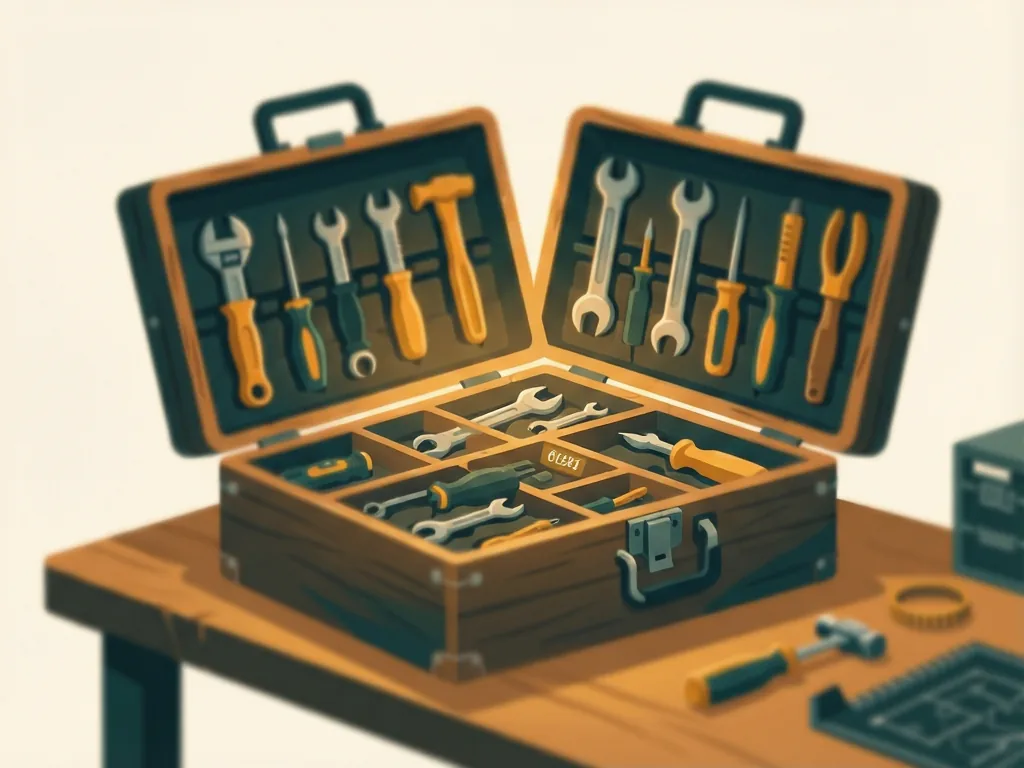
If you find yourself typing the same instructions into ChatGPT over and over — re-explaining your brand voice, your report format, or your coding standards every single time — this tutorial is for you. ChatGPT skills let you package instructions, reference files, and workflows into reusable modules the assistant can call on automatically. In this guide, you'll learn what skills are, how to create your first one step by step, and how to use them to get consistent, high-quality output without repeating yourself.
What Are ChatGPT Skills?
A skill is a saved set of instructions and supporting files that teaches ChatGPT how to perform a specific task the way you want it done. Think of it like onboarding a new team member: instead of explaining your process from scratch every time, you write the process down once, and the assistant follows it whenever the relevant task comes up.
Skills differ from simple saved prompts in a few important ways:
- They can include files. You can attach reference documents — style guides, templates, code examples, spreadsheets — that the skill uses as context.
- They can trigger automatically. ChatGPT can recognize when a request matches a skill you've created and apply it without you having to name it.
- They enforce structure. Because the instructions live in the skill, outputs stay consistent across sessions, days, and even across team members sharing the same skill.
Common use cases include writing social posts in your brand voice, generating weekly reports in a fixed format, converting raw notes into polished documentation, or running code-related tasks with your preferred conventions.
What You Need Before Starting
Before you begin, make sure you have the following:
- A ChatGPT account with access to the skills feature. Availability depends on your plan, so check whether the skills option appears in your settings or workspace. If you don't see it, your account or region may not support it yet.
- A clear, recurring task worth automating. Good candidates are tasks you do weekly or daily with a predictable structure.
- Supporting materials, if relevant: a style guide, sample output you like, a template, or example inputs.
Spend a few minutes collecting examples of "good output" before you start. Skills improve dramatically when they can point to concrete examples rather than vague descriptions.
Creating Your First Skill: Step by Step
Step 1: Open the skills section.
In ChatGPT, navigate to your settings or the skills/workspace area (the exact location depends on your interface version — look for "Skills" in the menu or your workspace admin panel).

Step 2: Choose "Create a new skill."
You'll be presented with a place to name the skill and add instructions.
Step 3: Give the skill a clear, descriptive name.
Use something specific, like "Weekly Marketing Report Builder" rather than "Reports." A clear name helps ChatGPT match the skill to your requests later.
Step 4: Write the instructions.
This is the heart of the skill. Describe:
- The goal: what the skill should produce (e.g., "Turn my bullet-point notes into a polished 500-word blog draft").
- The format: structure, headings, length, tone. Be explicit — "three sections with H2 headings, conversational tone, no jargon."
- The rules: things to always do and never do (e.g., "Never invent statistics," "Always include a one-sentence summary at the top").
- The trigger: when the skill should activate (e.g., "Use this skill whenever I share raw meeting notes and ask for a summary").
Step 5: Attach reference files.
Upload any documents the skill needs: templates, style guides, or examples of past outputs you approved. Two or three strong examples usually beat a page of abstract rules.
Step 6: Save and test it.
Run the skill against a real task. Give ChatGPT the kind of input you'd normally provide and see whether the output matches your expectations.

Step 7: Refine based on results.
If something is off — the tone is wrong, a section is missing — add an explicit instruction addressing that gap. Skills get better through a few rounds of iteration, not one perfect first draft.
Using Skills in Daily Work
Once saved, using a skill is usually as simple as making your normal request. If you've written a good trigger description, ChatGPT will apply the skill automatically when a request matches. You can also invoke it explicitly by referring to the skill by name: "Use the Weekly Marketing Report Builder with this week's numbers."
A few habits make skills more effective over time:
- Feed it real inputs. Skills perform best with the same kind of raw material you'd give a colleague, not idealized examples.
- Update instructions when your needs change. If your report format changes, edit the skill rather than fighting it in every session.
- Keep skills focused. One skill per task works better than a single sprawling skill covering everything. "Newsletter Draft Writer" and "Newsletter Subject Lines" are easier to maintain than one giant "Newsletter" skill.
- Review outputs before trusting them. Skills enforce structure, but you're still responsible for factual accuracy, especially with numbers, dates, and claims.
If you work in a team, check whether your plan supports shared skills. Sharing a well-built skill with colleagues is one of the fastest ways to standardize quality across a group — everyone gets the same format and rules without training sessions.
Tips for Writing Instructions That Actually Work
The difference between a mediocre skill and a great one usually comes down to the instructions. A few principles:
- Show, don't just tell. "Write like this example" attached as a file beats three paragraphs describing the tone abstractly.
- Be specific about format. State word counts, heading levels, and section order if they matter to you.
- Include constraints, not just goals. What the skill must not do is often as important as what it should.
- Keep the language plain. Instructions are just text ChatGPT reads. Simple, direct sentences work better than clever phrasing.
- Test edge cases. Try an unusually short input or a messy one. If the skill handles those gracefully, it will handle your normal work easily.
Common Mistakes
- Writing vague instructions. "Make it good" or "professional tone" gives the model almost nothing to work with. Spell out what professional means for you.
- Stuffing one skill with too many tasks. If your skill tries to write reports, emails, and social posts, it will do all three poorly. Split it up.
- Skipping the testing step. Saving a skill without running it against real inputs is how you end up discovering flaws mid-project. Test with genuine material first.
- Never revisiting the skill. Skills aren't fire-and-forget. If outputs drift or your needs evolve, update the instructions.
- Expecting skills to verify facts. A skill can enforce structure and style, but it doesn't guarantee accuracy. Always check numbers, names, and dates yourself.
- Ignoring plan and availability limits. Skills aren't available on every plan or in every workspace configuration. Confirm what your account supports before building an entire workflow around them.
With one or two well-built skills handling your repetitive tasks, you'll spend less time re-explaining yourself and more time on the work that actually needs your judgment.
Comments (0)