
Ten task automation ideas to help you get things done
Ten task automation ideas show how AI assistants and Zapier connect email, calendar, notes, and task apps to reduce work and keep to-dos current
Key Takeaways
- Zapier helps connect scattered personal to-do sources—such as email, calendar, messages, notes, and saved links—into one task app, reducing manual copy-and-paste and mental load.
- Users can create task automations by describing what they want in plain language to AI assistants like Claude, ChatGPT, or Cursor; Zapier turns those requests into automated workflows called Zaps.
- Zapier goes beyond chat by running event-based automations across 10,000+ apps, using AI only where judgment is needed, logging runs, proposing fixes, and managing app connections securely.
- Practical examples include turning shipping emails into tasks, creating deadline reminders, triaging school or client emails, logging completed tasks, and flagging stale project cards.
- Zapier offers ready-made templates and a free way to start, making it easier to build personal task automation without writing complex code.
Meta description: Zapier lets AI assistants build personal task automation, sync apps, and reduce mental load. See prompts, benefits, challenges, and workflow ideas.
Tags: task automation, Zapier, AI agents, personal productivity, workflow templates
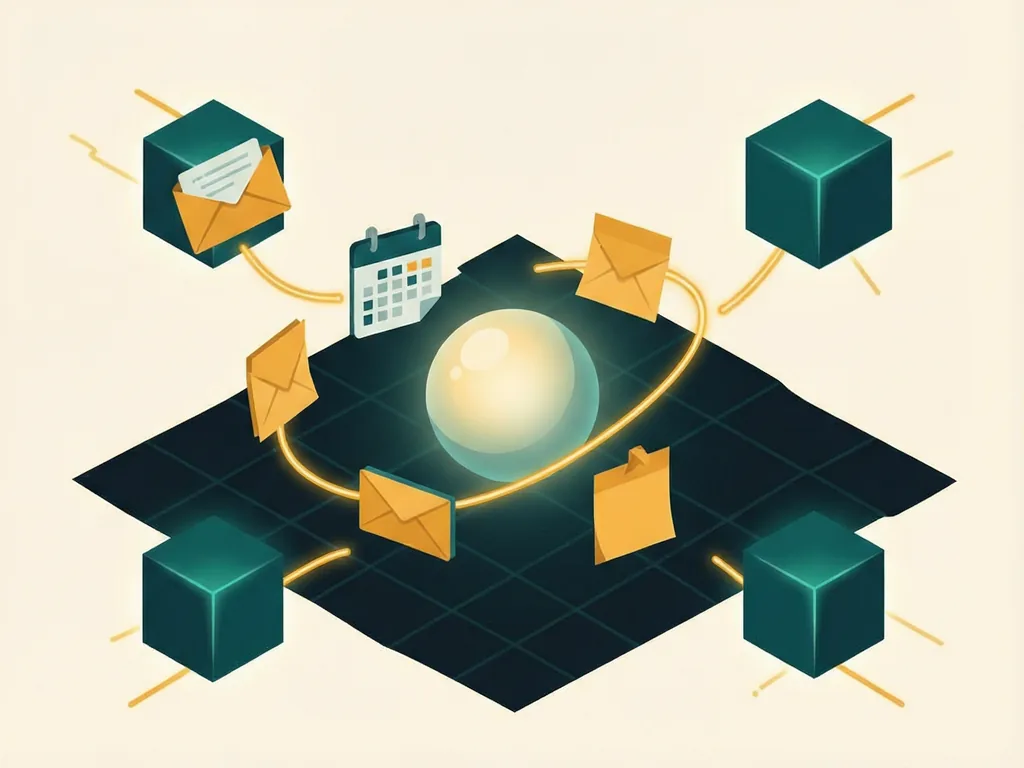
Featured image: Abstract friendly illustration of email, calendar, and note cards flowing into one checklist, no people, logos, or written words.
Task automation is for people whose personal to-dos arrive in scattered places: email, calendar, messages, notes, and late-night thoughts. Zapier provides a way to connect a task app to those sources, and it also lets users create automations from AI tools such as Claude, ChatGPT, or Cursor by describing the result they want in plain language. Zapier connects your tools, runs the steps, and stays on the job after the chat closes. It combines AI with reliable, deterministic automation across 10,000+ apps, so bills, deliveries, assignments, and follow-ups land on one list without manual copy-and-paste.
Why task automation matters for personal life
A personal task list tends to start in one place and spread quickly. A partner’s text, a school email, a note written mid-errand, or an idea that appears at 11 p.m. can all create something that needs to be remembered. Without automation, the list slowly falls out of sync with real life.
Task automation moves items from email, calendar, shopping lists, saved web pages, and other places into a task app. Instead of jumping between apps and seventeen browser tabs, the system decides where the to-do belongs. A bill reminder in Gmail can become a task. A saved article about a home repair can appear on the list. A follow-up that needs to happen after a specific date can be scheduled automatically. The value is not only organization; it is reducing the repeated mental effort of remembering, copying, and re-entering small items.
How to build an automation from an AI assistant
Starting from an AI tool follows a simple sequence. First, connect Zapier to the assistant and link the apps you use, such as Gmail, Google Calendar, Todoist, and Notion. You connect once, and the same connections work from Claude, ChatGPT, Cursor, or another AI tool you like.
Then describe the to-do source in plain language. For example, you might say that a bill email should create a Todoist task three days before the due date. The agent turns that request into a Zap, which is a Zapier automated workflow that runs on its own. Zapier then runs the Zap when the email arrives or the relevant event happens, even if the laptop is closed.
Because Zapier connects to 10,000+ apps, the task list can pull from nearly everywhere personal to-dos hide, from an inbox to a shared family list. If you prefer to build the automation yourself, you can do that in Zapier too.
What Zapier adds beyond a chat
A chat assistant can help write or update a to-do list, but Zapier adds reliability and reach:
- It starts when something happens. A scheduled task inside an AI tool runs at a set time whether or not new information arrived. A Zap can start when a bill lands in Gmail, a package ships, or a calendar event is added, so the task appears before you have to think about it.
- It reaches more of your stack. Built-in connectors in AI tools tend to cover basics such as reading a calendar or drafting a note. Zapier can support steps like adding a flagged Gmail message to Todoist or syncing a Notion goal to a Trello board.
- It uses AI only where judgment is needed. A Zap can use AI for a step such as deciding whether a long email from your boss needs immediate action, while other steps run as regular automation steps, which are faster and cheaper.
- It can recover from small breakage. If a Gmail connection expires or a Trello board is renamed, Zapier logs every run, finds the problem, proposes a fix you can approve, or applies fixes on its own. Over time, repeated AI steps, such as sorting tasks by urgency, can be turned into regular steps so the Zap gets cheaper and steadier.
- It manages access instead of exposing secrets. Zapier handles connections to Gmail, Google Calendar, task apps, and other tools, so you do not paste passwords or API keys into a chat. Switching from Claude to ChatGPT, or trying a new AI tool, does not have to reset those connections. Everything you build from any AI tool appears in one place in Zapier.
Prompts, templates, and a use case you can ask for
If you are not sure what to ask an agent to build, several prompts can be tried with Claude, ChatGPT, or Cursor after Zapier is connected:
- Track deliveries: “When a shipping confirmation arrives in Gmail, add a task called ‘Expect package’ in Todoist, due on the delivery date.”
- Complete assignments on time: “When an email from a client mentions a due date, add a task three days before it.”
- Triage emails: “When an email arrives from my kid’s school, have AI decide whether it needs action, and if it does, add a task with the date and what I need to do.”
- Keep a done list: “When I complete a task in Todoist, log it in a Google Sheet with the date so I can see what I got done each week.”
- Catch stale tasks: “When a card has sat untouched in Trello for a week, send me a Slack message so I can decide to do it or drop it.”
For readers who prefer not to write prompts, Zap templates are available for common personal task automations. Clicking “Try it” opens the template in Zapier for setup. A Zapier account is needed to use these workflows, and getting started is free; more details on how it works are also available. The broader set of ideas is organized as ten task management use cases, and Microsoft To-Do is also listed as a place to create tasks.
One use case starts with a familiar situation: your sister emails you about planning a birthday party for a mutual friend. You could stop and reply now, let the message gather dust, or open your to-do app and type the details. A Zap can instead add flagged emails or saved messages to your to-do app automatically, letting you start planning the party without pulling attention away from the moment.
Benefits, challenges, and common mistakes
The practical benefits are clear. Fewer dropped balls happen when real-life triggers such as a package shipping notification, a bill due date, or a calendar event automatically create tasks. Everything lands in one place, because personal life does not fit inside a single app. Mental load drops when the system remembers small items for you. Time is also returned because manually logging reminders, reorganizing lists, and re-entering information across apps adds up.
The challenges are just as real. A personal system has to fit your own habits, unlike a workplace where teams may agree on standard tools and processes. Finding automations that match how you think and work can take experimentation. Too much automation can create noise: if every email becomes a task, you have built a second inbox. The goal is to surface things that genuinely need attention. Life also changes, so workflows need occasional check-ups to make sure they are still serving you rather than working against you.
AI can help when the work is not just moving data. A lengthy email about an upcoming school event could be summarized, with the date pulled out and a calendar reminder added before you even open the message. A scrambled voice memo recorded while driving could become a clean, actionable to-do. AI can also make workflows more flexible: flag a message as urgent because of how it is worded, group related errands based on what you wrote, or nudge you to follow up when a card has sat untouched for a week.
But not every workflow needs AI. Recurring reminders such as paying rent, a grocery list that resets every Sunday, or an alert for a bill due date may be better handled with straightforward automation. Use AI where it saves effort, not where it adds unnecessary complexity. When you add an AI step, you can choose which model powers it. A leaderboard for AutomationBench, Zapier’s open benchmark that tests models on real business workflows, provides an up-to-date view of which models excel at which kinds of tasks.
Who should use this approach? Readers whose tasks arrive in many places, who already use Zapier-compatible apps, and who want automations to keep running after an AI chat closes may find it useful. Who should skip or simplify? Readers who are happy with a single manual list, who do not want to maintain workflows, or who are uncomfortable connecting email and calendar tools may get better results with basic reminders or templates before building complex AI-powered Zaps.




Comments (0)