
Android power users should note that this app unlocks more than 30 features not available in Settings.
Essentials adds 30+ Android tweaks beyond Settings, including app lock and notifications, but needs sideloading, permissions, and some Shizuku or root.

Key Takeaways
- Essentials is a free Android app that adds 30+ advanced tweaks beyond Settings and Developer Options, covering app locking, notifications, gestures, display, widgets, status bar icons, and more.
- It must be sideloaded from GitHub and requires many permissions, including Accessibility Services and restricted settings, so the setup process can be cumbersome.
- App Lock is a key feature that protects selected apps with fingerprint, face, PIN, or password, while notification lighting and flashlight pulses provide useful visual alerts.
- Most features work on Android 8 or newer, but a small number of advanced options require deeper system access such as Shizuku or root.
- The app is best for Android power users willing to manage permissions and sideloading, but it may not suit users who want simple Play Store installation or minimal permission prompts.
Meta description: Essentials is a free Android app that adds 30+ power-user tweaks for app locking, notifications and device controls, but it must be sideloaded.

Tags: Android, Essentials, App Lock, Sideloading, Power users
Featured image: Abstract, friendly illustration style, no real people, no logos, no text: a smartphone with gear icons and notification dots.
A power-user toolbox beyond Settings and Developer Options
Essentials, a free Android app, is described as a power user's dream on Android. It is a toolbox that goes beyond the standard Settings app and the Developer Options menu. Android owners normally get the power Google assumes they need in Settings, and can enable Developer Options to get even more. Essentials aims at users who want still finer control over notifications, security, gestures, display behavior, and app management. The app includes 30+ mods and tweaks, such as button remapping, app freezing, Google Maps battery saving modes, sound and haptics, wallpaper, widgets, status bar icon customization, edge lighting, flashlight pulsing, notification management, Always-On Display, and more.
For most Essentials features, the only stated requirement is Android 8 or newer. A small number of advanced options need a shell provider such as Shizuku or root access, but most of the features power users are likely to enable can work without going beyond that minimum.
Installation requires sideloading and extra permissions
Essentials is not available on the Google Play Store. It has to be sideloaded from the app package file published in its official GitHub Repository. Because Google has changed how apps are sideloaded, users should understand the current installation process before proceeding.
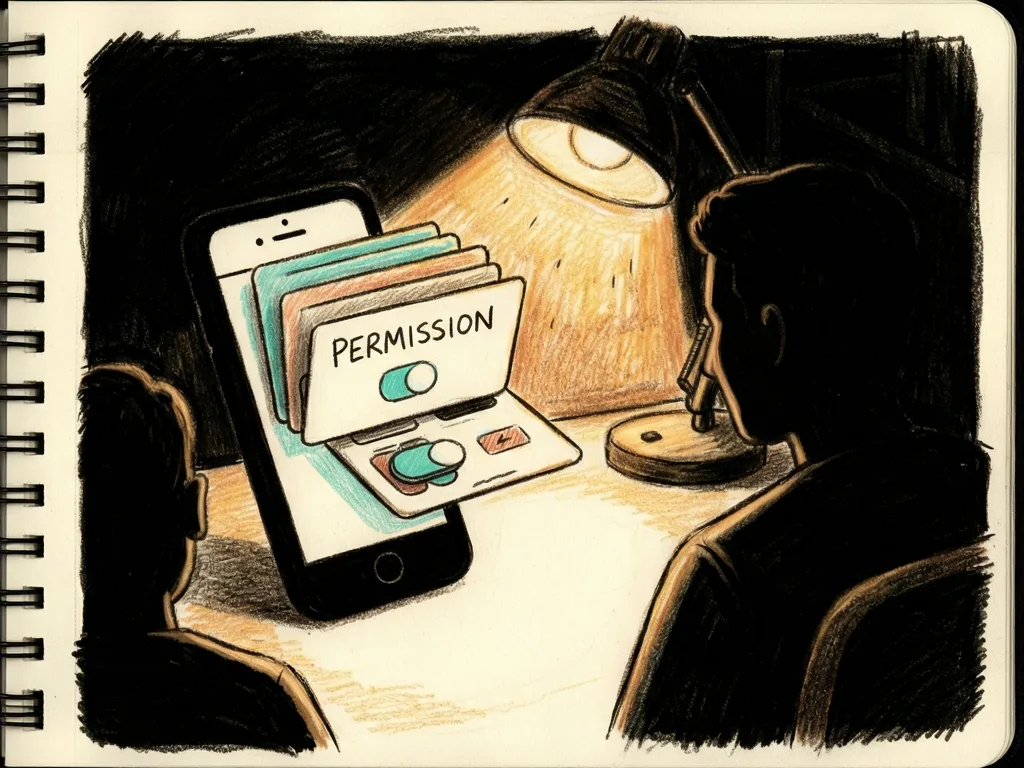
Installation is only the first step. Many Essentials features ask for Android permissions, and some need changes beyond default app settings. For example, changing lock screen shortcuts requires enabling the app in Accessibility Services. Users also have to turn on restricted settings by going to Settings > Apps > See all apps > Essentials, opening the three-dot menu, and selecting "Allow restricted settings." Without this step, Android's permissions system can block features that Essentials is meant to control.
The app itself is simple to use: open Essentials, search for a feature, then enable or customize it. The trade-off is a stream of permission prompts. Each new tweak may require another permission, which can feel like a chore. Still, the added control can make the effort worthwhile for users who need deeper Android settings.
App Lock and notification tweaks show the value
One highlighted feature is App Lock, described as something users may wish were built into Android. It asks for authentication before selected apps open. That is useful if someone gets hold of an unlocked phone and tries to open a private app, such as a banking app.
App Lock is found in Essentials > Security and Privacy. To enable it, users turn the On/Off slider on and are prompted to grant Essentials Accessibility permission. After that, tapping the feature asks for authentication with fingerprint, face, or password or personal identification number, depending on what is already set up on the phone. Next, users choose "Select locked apps" and switch on the apps they want protected. Authy, a two-factor authentication app, a bank app, and Messages are shown as examples. Once those apps are locked, the next attempt to open any of them requires authentication.

Another practical area is Notifications and Alerts. Essentials can enable notification lighting, flashlight pulse, notification snoozing, and snooze system notifications. Notification lighting can be limited to chosen apps; enabling it for Messages and Phone keeps calls and texts visible even when the phone is on silent mode. Flashlight pulse offers another visual alert that works whether the phone's screen is facing up or down.
Shizuku, root access and what comes next
Some Essentials capabilities depend on deeper system access. A handful of permissions are not possible unless the device has root access or uses Shizuku. Shizuku is an open-source Android tool that lets third-party apps use system-level APIs and Android Debug Bridge privileges without fully rooting the device. To start the Shizuku service, users need to enable wireless debugging. Shizuku can be installed from the Play Store, and the app provides detailed, lengthy directions for the setup.
The wider point is that Essentials is not a casual add-on. It is a control panel for users willing to sideload software, review permissions, and sometimes configure advanced access tools. For readers who already use Developer Options and want more Android control, Essentials is recommended because most of these options are not found in other tools.
Who should use it / who should skip it
Use Essentials if you are an Android power user who wants deeper customization than the Settings app provides, and you are comfortable sideloading an app package file, granting Accessibility Services permissions, and enabling restricted settings. It is especially useful for people who want App Lock for selected apps, notification lighting, flashlight pulses, or tweaks to status bar icons, widgets, edge lighting, sound, haptics, and Always-On Display.
Skip it if you want an app that can be installed only from the Google Play Store, if you do not want to approve repeated permission prompts, or if you need features that require root access or Shizuku but do not want to manage wireless debugging and system-level tools. For those users, the cost in setup and permissions is likely greater than the value of the extra tweaks.





Comments (0)